Constrain To Component Move
Overview
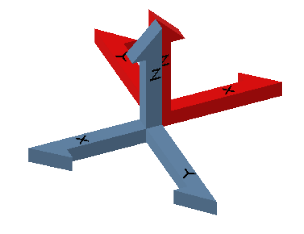
Constrain To Component Move moves selected components to a base component’s origin while maintaining the selected components’ current orientation (rotation about their own origin). After moving, the selected components’ origin planes are constrained to the base component’s origin planes.
Note: If the origin planes are not parallel, the command does nothing.
How It Works
- Select the base component.
- Select one or more components to move.
- Each selected component is translated so its origin moves to the base component origin (orientation preserved).
- Constraints are applied between origin planes to maintain the result.
Usage Instructions
- Open the assembly containing the components.
- Select the base component and the components to move.
- Click Constrain To Component Move in the Placement panel.
- Review the new position and constraints in the assembly.
Troubleshooting
- No change occurs: Verify the origin planes are parallel between the base and selected components.
- Component cannot move: Check for grounding or constraints preventing translation.
- Wrong destination: Ensure the correct base component is selected.
Examples
- Move a bracket to a base plate: Select both components and use the command to reposition the bracket while keeping its orientation.
- Move multiple supports to a common origin: Select the base and all supports, then run the command to move them.